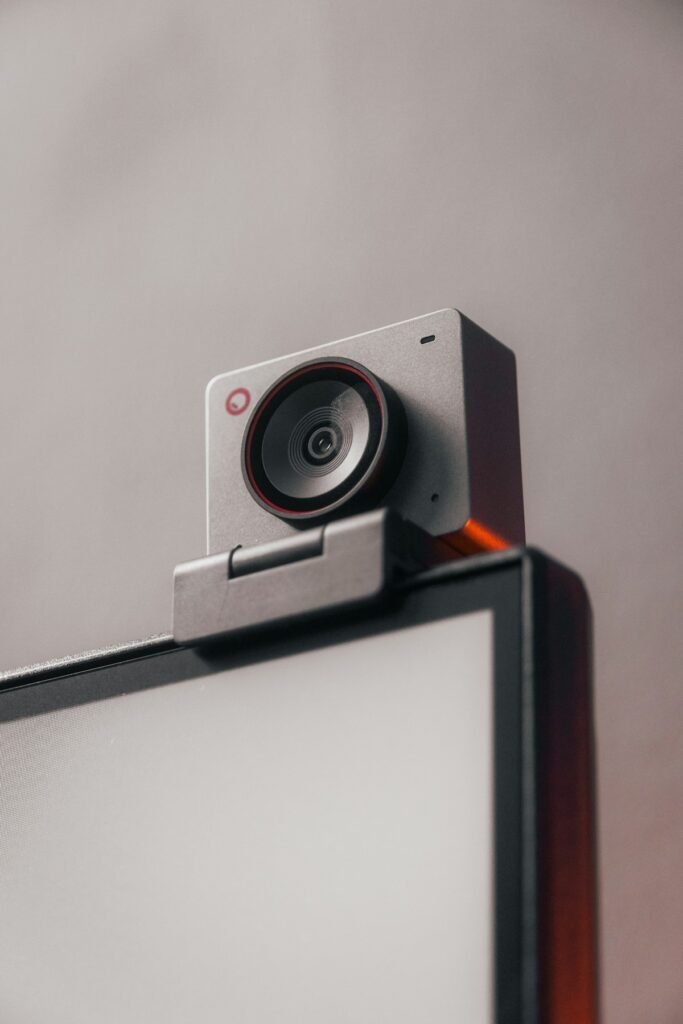
A webcam setup should be judged in the software and room where it will be used. The camera, USB route, lighting, microphone and output settings all contribute to the result. Before an important call or broadcast, record a rehearsal that includes your normal speech, movement and any demonstration.
The Logitech C920s and Elgato Facecam MK.2 illustrate different equipment needs. C920s includes microphones and autofocus. Facecam MK.2 uses a fixed-focus design, with a documented 30–120 cm range, and requires a separate microphone. Plan the whole desk around those differences.
1. Define the delivery format
Write down the primary use: a meeting, recorded lesson, live stream or product demonstration. Decide the intended orientation, resolution and frame rate supported by the destination. A local 60-fps preview does not establish that a meeting service or final recording uses the same format.
List the software, computer and connection path you will use. If the setup depends on a dock, hub or extension, include it in the rehearsal. The final arrangement should work as assembled, without relying on an ideal direct connection you will not actually use.
2. Position the camera and measure the distance
Mount the camera securely near the level that gives the intended view. Check the framing from your normal seated or standing position. Leave space for ordinary movement and decide whether a presentation layout will cover part of the image with slides, captions or other elements.
Measure the working distance if the camera has a specified focus range. With the Facecam MK.2, a very close object demonstration may fall outside the documented range even when your face is properly placed. With autofocus, inspect how the camera responds when you move or present an object rather than assuming every transition will be smooth.
3. Verify the actual USB route
Connect using the appropriate cable and port, then select the intended camera in the application. Elgato documents USB 3 for uncompressed Facecam MK.2 video, while its USB 2 route uses MJPEG. Connector shape alone does not tell you which connection capability is available through a dock or cable.
Record a sample and inspect the saved format. If the selected mode is unavailable, work through the manufacturer’s connection and software requirements one part at a time. Avoid replacing the webcam before checking a restrictive hub, unsuitable cable or application setting.
4. Arrange the light around your face
Begin with one broad, comfortable source positioned to illuminate your face. Inspect the preview for bright reflections in glasses, an overbright window or a face left in shadow. Change the light or seating position before adding more equipment. Keep the arrangement comfortable for the length of the session.
Evaluate the background as part of the image. Remove distracting items that are not intended to appear and choose a framing that remains appropriate when you lean or stand. Check exposure and color after the room’s normal lights are on; a setup tested in daylight may look different during an evening call.
5. Select and test the microphone
Choose the actual audio input in the same application. Facecam MK.2 does not supply a microphone, so a separate device is essential. C920s has built-in microphones, but whether they suit the room should be decided by listening to a saved sample.
Speak at the normal volume and distance. Include keyboard use, a pause and any movements you expect during the session. Listen through headphones for distracting room sound, clipping or an input that is unexpectedly coming from another device. Adjust placement and settings before relying on processing to solve every issue.
6. Rehearse the complete presentation
Record a short section using the same scene layout and software intended for the real session. Include normal head movement and any object you will show. Check face focus, object focus, framing and the relationship between audio and video.
Open the exported or saved file outside the application’s preview. Verify the intended dimensions and frame rate where your software makes those visible. If the session will be long, run a representative rehearsal long enough to expose practical problems with comfort, power, connections and room conditions.
7. Save a repeatable configuration
Write down the camera, microphone, port and successful settings. Mark useful positions for the camera and light if the desk is regularly rearranged. Recheck the application input selection after connecting another video device or changing a dock, because the expected device may no longer be selected.
Use a privacy routine when finished, including any available physical shutter and the application’s camera controls. Keep cables secure and accessible without strain. Include only necessary additions in the ownership cost calculator; a dedicated microphone or light should solve an observed need.
Manufacturer references: Logitech C920s, Facecam MK.2 specifications and Elgato’s model comparison. The useful acceptance test is a clear, correctly framed recording with intelligible audio from the complete setup.
Models and complete setups to explore
These researched examples illustrate the decisions in this guide. Check each exact variant, the documented limitations and the equipment it needs.
- Logitech C920s Pro HD Webcam — Black webcam with privacy shutter
- Elgato Facecam MK.2 — Black standalone webcam
- Logitech C920s vs Elgato Facecam MK.2: a complete call setup or a separate streaming rig?
Sources & fact-checking
Manufacturer documentation and primary references checked 2026-11-02. Specifications can depend on region, hardware revision and selected bundle.