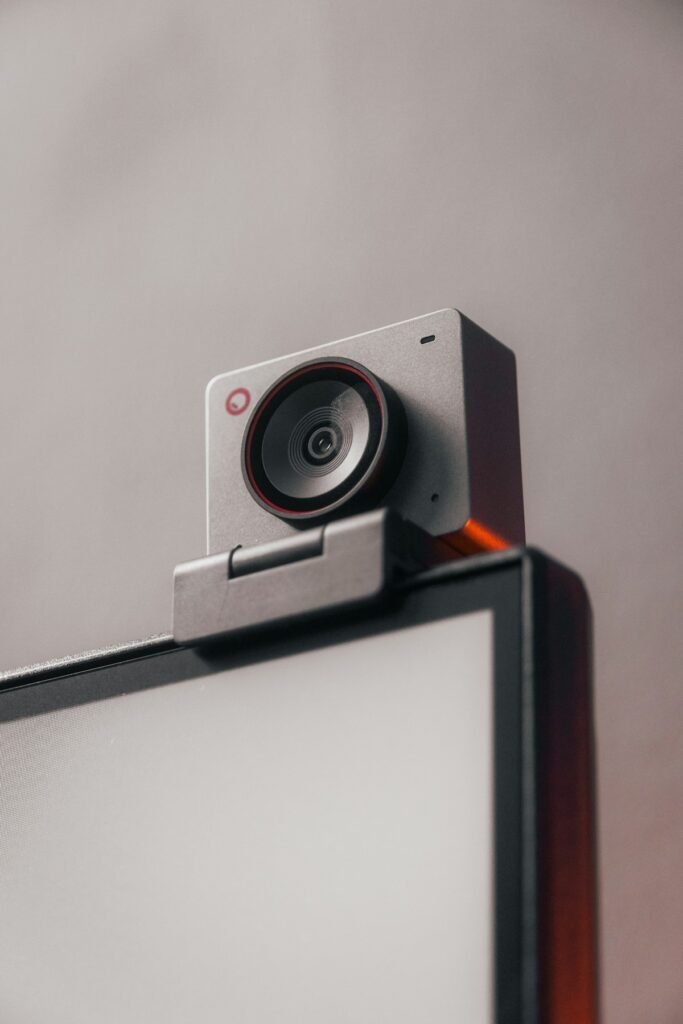
Start with the entire desk setup. The Logitech C920s combines a webcam with autofocus, microphones and a privacy shutter. The Elgato Facecam MK.2 is a different proposition: its fixed-focus design and separate microphone requirement belong in a planned camera-and-audio setup. Whether 60 fps is useful depends on your software, output and subject movement.
HotBoxCams has not compared these webcams in a controlled studio or measured their performance in dim rooms. The following choices are based on their published design and connection requirements, with practical setup advice separated from measured results.
The important desk-level differences
| Question | Logitech C920s | Elgato Facecam MK.2 |
|---|---|---|
| Documented video | 1080p at 30 fps; 720p at 30 fps | 1080p at up to 60 fps |
| Focus approach | Autofocus | Fixed focus, documented 30–120 cm range |
| Microphone | Two built-in microphones | Separate microphone required |
| USB consideration | Check computer and application requirements | USB 3 for uncompressed video; USB 2 uses MJPEG |
| Selected identity | C920s with shutter | Facecam MK.2, not another Facecam generation |
See Logitech’s C920s specifications, Elgato’s technical specifications and its Facecam comparison chart. We omit a single definitive Facecam field-of-view number because the current official pages disagree.
When the C920s is the simpler starting point
The C920s is a candidate for meetings, lessons and basic recording when an integrated microphone arrangement is useful. That does not mean its microphones will remove room echo or produce the sound of a close-positioned dedicated microphone. Record a sample at your normal seating distance and listen through headphones before deciding whether you need separate audio.
Autofocus may suit a setup where your distance changes, but it is still worth checking behavior with the actual background and lighting. If you hold a small object toward the camera, inspect the recording to see whether the object and your face behave as intended. A feature being available is different from it performing perfectly for every demonstration.
The shutter offers a physical way to cover the lens when you are finished. Build that into a routine along with selecting the correct camera in each application. A computer may remember a different video device after a docking or software change.
When the Facecam approach fits
The Facecam MK.2 is a candidate when you are building a deliberate desktop production setup and have a suitable microphone. Measure the camera-to-face distance at the position you actually use. A fixed-focus range matters particularly on a deep desk, a standing presentation station or a demonstration where a small object comes very close to the lens.
Check the full USB route: the computer port, cable, hub and dock. A plug fitting into a socket does not establish that the route supports the desired video format. Connect and select the intended mode, then inspect a recorded file. If the app offers a lower frame rate or different format, resolve the connection and software settings before assuming the camera is defective.
Lighting and delivery can outweigh a frame-rate choice
Place a broad, comfortable light where it illuminates your face without shining directly into your eyes. Examine glasses, shiny skin and bright windows in the preview. Move the camera toward eye level and leave enough space around your head for the layout you intend to use. A distracting background or a window behind you remains a composition problem whichever webcam you choose.
Then check the actual destination. A video call, recorded lesson and live stream may use different output settings. If your delivery is 30 fps, buying around 60 fps alone may not improve that experience. If smooth motion is important, test the full capture-to-delivery path instead of only the local preview.
Make the choice using a short rehearsal
List the camera, microphone if needed, mounting arrangement, light and required connection accessories in the ownership cost calculator. Include equipment you already own so you do not purchase duplicates.
The C920s is the more self-contained starting point for someone who needs a camera and basic audio together. The Facecam MK.2 makes more sense when its documented video modes, fixed-focus working distance and separate-audio workflow fit the desk. Before an important call or stream, record a sample that includes normal speech, head movement and any object demonstration. Listen, inspect focus and verify the saved frame rate. Choose the setup that completes that rehearsal successfully within your budget.
Models and complete setups to explore
These researched examples illustrate the decisions in this guide. Check each exact variant, the documented limitations and the equipment it needs.
- Logitech C920s Pro HD Webcam — Black webcam with privacy shutter
- Elgato Facecam MK.2 — Black standalone webcam
- Streaming camera setup checklist: framing, focus, USB, lighting and audio
Sources & fact-checking
Manufacturer documentation and primary references checked 2026-11-02. Specifications can depend on region, hardware revision and selected bundle.