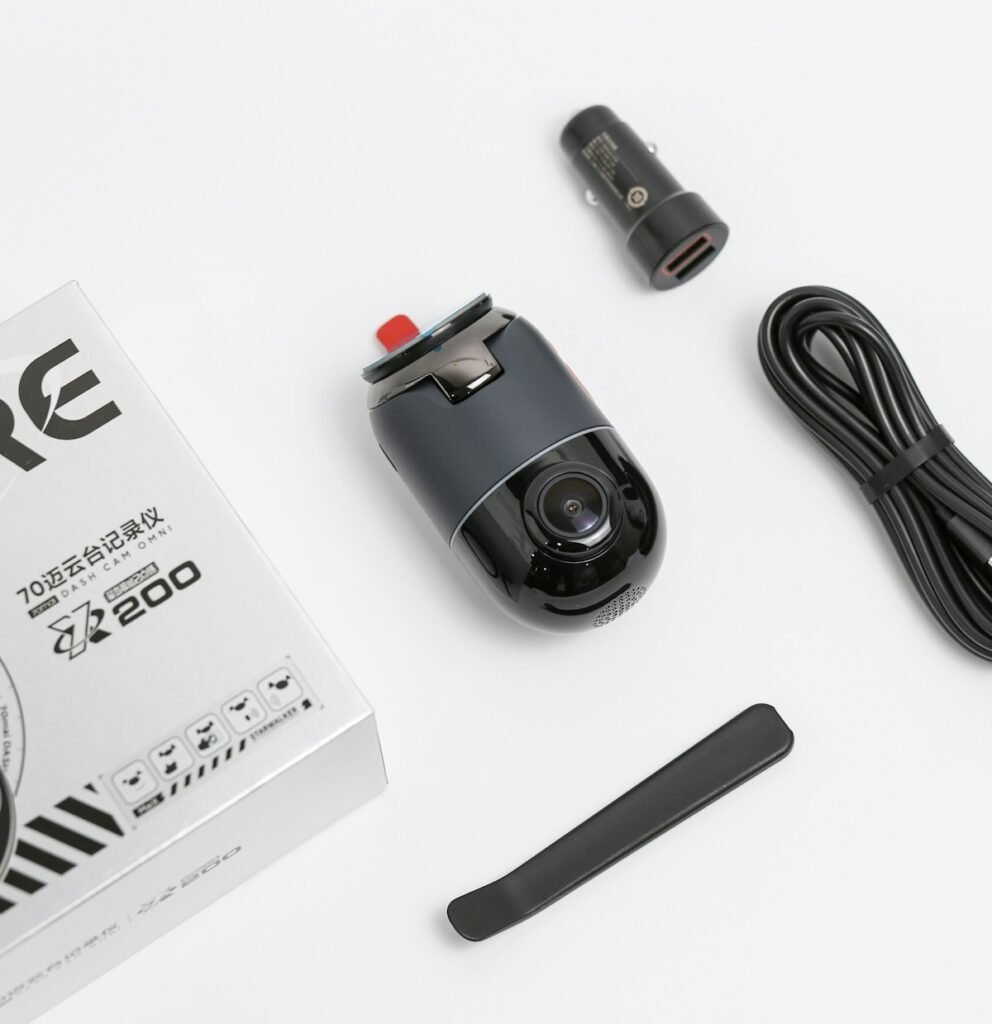
A dash cam needs a dependable installation and a retrieval routine. A glowing status light does not prove that both channels are recording correctly, that the timestamp is accurate or that a parked event will be saved. Work through this checklist with the camera manual and your vehicle’s guidance before relying on the system.
Our example packages are the standard VIOFO A229 Pro 2CH and a Thinkware U3000 bundle containing a 64GB card, CPL filter and OBD-II cable. Inspect the delivered package rather than assuming every listing with the same camera name contains the same accessories.
1. Define driving and parking requirements
Decide whether you need front-only, front-and-rear or another verified arrangement. Identify what should happen during a trip, after the engine stops and when the vehicle is left for an extended period. Keep these requirements separate; parked operation needs a suitable power method and appropriate camera settings.
List the vehicle, camera variant and expected installation path. If a rear camera will be mounted on a moving hatch, account for that movement in the routing plan. Confirm that the selected rear-camera module and cable belong to the camera system; similar connectors do not establish interchangeability.
2. Inventory the exact kit
Lay out the cameras, power equipment, cables, mounts, card and any filter before installation. Match the model identifiers to the order and manual. Check whether the package contains a card and whether the supplied power method covers your intended operation. “Parking mode supported” does not mean every parking accessory is included.
Measure cable runs along the proposed safe route. Keep wiring clear of controls, pedals and airbag deployment areas according to the vehicle’s instructions. If trim removal, electrical work or the correct route is uncertain, use a qualified installer and ask them to show how the finished system behaves.
3. Choose memory from the camera’s guidance
Use the required card format, capacity and supported series. VIOFO’s current FAQ recommends VIOFO cards or SanDisk MAX Endurance and explicitly distinguishes MAX from High Endurance. That is a concrete example of why an endurance label or a high speed number alone is insufficient.
For the U3000, follow Thinkware’s requirements and the supplied card instructions. Do not infer support for a particular replacement merely from its capacity. Save any files you need before formatting, then use the procedure specified for the camera. Keep the card’s model information so recurring errors can be investigated with the correct details.
4. Choose and verify the power arrangement
Confirm whether the vehicle’s accessory outlet remains powered after shutdown. For a supported hardwire or OBD arrangement, verify both camera compatibility and vehicle suitability before connecting it. Do not treat an included cable as approval for every vehicle or every electrical configuration.
Review the available battery-protection and parking settings with the installer or manual. Ask what causes the camera to switch modes, how it behaves when the power limit is reached and how you will know that it stopped recording. A supercapacitor is not a substitute for an external source that powers extended parked operation.
5. Set the view before permanent attachment
Clean the mounting surface as instructed and temporarily check the image while the vehicle is safely stationary. Confirm a clear forward view and a useful rear view without avoidable obstructions. Keep the installation within the vehicle guidance and applicable placement requirements for where you drive.
If a filter is supplied, follow its alignment instructions and inspect reflections in the saved footage. Check the framing again from the driver’s normal seat and after opening and closing any hatch carrying the rear camera. Allow mounts to secure as directed before driving.
6. Rehearse recording in ordinary conditions
Set the date, time and desired recording modes. Record a short ordinary trip, then park safely before reviewing it. Open files from every channel and check that the recordings cover the journey you expected. Look for missing periods, an obscured view, repeated warnings or files that fail to play.
Repeat a short check after dark. Moving subjects and bright lights are a different challenge from a daylight preview. Do not assume a nominal 4K mode guarantees a readable plate in every scene. Choose the settings that produce useful results for your installation and retain a sample as a reference.
7. Check parking and retrieval separately
With the vehicle safely parked, confirm the transition into the intended mode using the manufacturer’s procedure. Review the resulting files and understand the mode’s trigger and timing behavior. Do not deliberately create an impact or other hazardous event to test a recording feature.
Practice protecting and exporting a clip to another device. Verify it plays with the expected timestamp and both viewpoints where relevant. Use the storage calculator with combined stream bitrate for an estimate, then observe actual retention. Include card, installation and parking equipment in the ownership cost calculator.
Manufacturer references: A229 Pro, VIOFO FAQ and Thinkware U3000. Recheck recordings periodically and after service work or a settings change.
Models and complete setups to explore
These researched examples illustrate the decisions in this guide. Check each exact variant, the documented limitations and the equipment it needs.
- VIOFO A229 Pro 2CH — Front and rear two-camera system; not Tele, waterproof rear, or three-channel bundle
- THINKWARE U3000 Front-and-Rear OBD Bundle — Two-channel kit with 64GB card, CPL filter and OBD-II power cable
- VIOFO A229 Pro vs Thinkware U3000: compare the complete dash-cam installation
Sources & fact-checking
Manufacturer documentation and primary references checked 2026-11-02. Specifications can depend on region, hardware revision and selected bundle.