To check whether a borescope works with your phone, verify the complete combination: exact camera model, phone model, operating system, required app and connection method. A familiar connector or a broad “Android and iPhone” claim does not resolve every part of that combination. Also check that you can save and export the evidence you need.
Identify the exact product and required app
Use the manufacturer’s product page or manual to find the app’s exact name and its official store link. Similar product names can use different applications. Check the listed developer or seller so you do not install an unrelated app that happens to use the same search terms.
For example, Klein Tools identifies its ET21 as a Wi-Fi borescope using a dedicated app. The official App Store listing identifies Klein Tools as the seller and provides current platform requirements. These details are a model-specific example, not a statement that every Klein borescope uses the same software.
Check your actual operating system
Find the installed operating-system version on the phone and compare it with the current app requirements. Also check whether the manufacturer documents limitations for particular devices. A store listing describing a minimum version does not establish that every function has been tested on every phone running that version.
If you use a managed work phone, confirm that the required app and connection method are permitted. If you expect to use a tablet, verify tablet support instead of assuming that a phone-compatible app will provide the same workflow. Resolve those questions before depending on the device at a job site.
Understand how the image reaches the phone
A borescope may use a direct cable, a local wireless connection or another documented route. Find out which connection carries video and which connection is only for charging. Do not assume that plugging a charging port into a phone turns the camera into a wired video device.
The ET21 instruction manual distinguishes its USB charging connection from the app’s Wi-Fi connection. It also notes that the phone must disconnect from the borescope’s Wi-Fi when an internet connection is needed. Check the equivalent behavior for your chosen product, especially if you need to send files during an inspection.
Test permissions and the live view
Install the app through the documented route, charge the equipment and follow the manufacturer’s connection sequence. Review permission requests in the context of the required functions. Confirm that the app shows the correct device and a moving live image rather than a retained still frame.
Try rotating the phone and using the image-orientation controls. Check that you can interpret the view when the probe turns. If the screen becomes difficult to see in the intended lighting or if the phone must be held awkwardly, consider whether a separate display or a suitable support would make the task easier.
Prove that the files can leave the app
Capture a harmless test photograph and a short video. Locate both in the app, then export them using the documented process. Open the exported files outside the app and check their orientation, resolution and whether the sound or other information you need is present.
Determine where the files are stored and whether they remain accessible after disconnecting the camera. If the workflow requires an internet connection to send them, test the transition back to the normal network. Keep the original files when creating annotated or reduced-size copies for a report.
Check the practical inspection arrangement
Think about how you will hold the phone and guide the probe at the same time. Include gloves, available space and access to the capture controls in a rehearsal. The useful question is whether the complete arrangement lets you inspect and document the area comfortably, not simply whether a live image appears.
Keep phone and camera power separate in the plan. Check the documented battery and charging requirements, and use the equipment within its environmental limits. A protection rating assigned to a camera head does not automatically apply to the phone or display unit.
Save a compatibility note for future use
Record the camera, app version, phone, operating system, connection method and successful export format. Repeat a short functional check after a major app or phone update before relying on the setup for important work. If a connection fails, change one variable at a time and consult the exact model’s support information.
A suitable phone-connected borescope should pass three practical checks: you can see the required area, capture usable evidence and retrieve that evidence in your normal workflow. Confirm all three before treating the equipment as ready for inspection work.
Models and complete setups to explore
These researched examples illustrate the decisions in this guide. Check each exact variant, the documented limitations and the equipment it needs.
- Klein Tools ET16 Android Borescope — USB Android borescope with 10-foot gooseneck
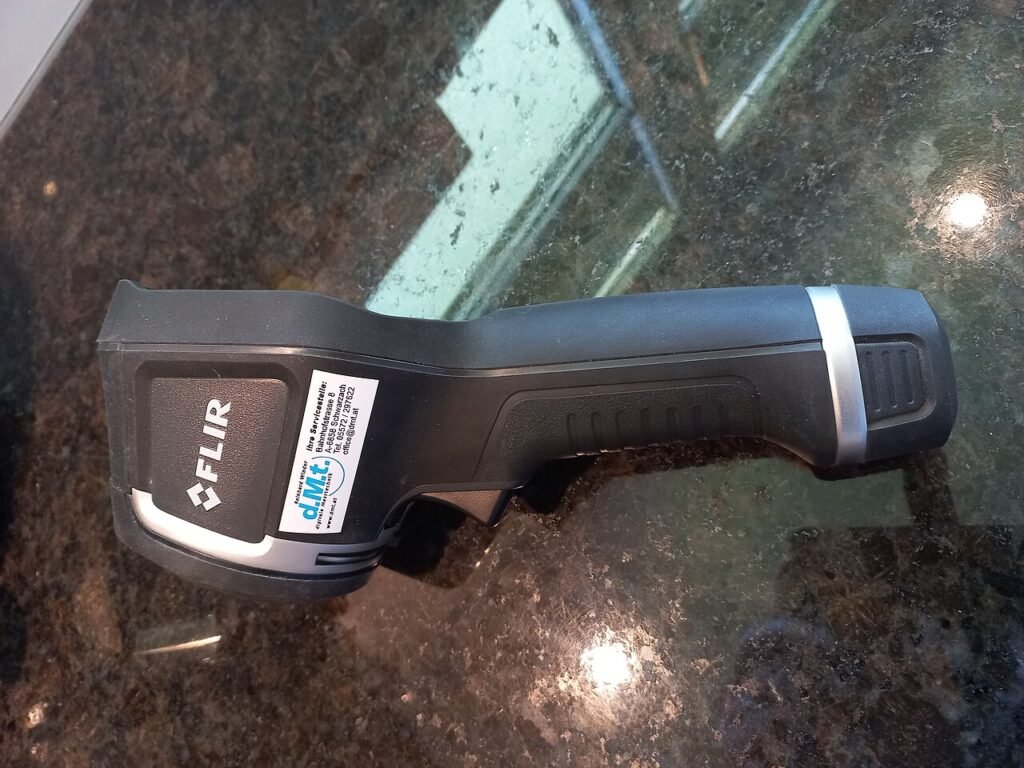
- FLIR Edge Pro Wireless Thermal Camera — Wireless iOS/Android model, formerly listed as FLIR ONE Edge Pro
- Klein ET16 vs FLIR Edge Pro: visual access and thermal inspection solve different problems
- Inspection camera setup: choose the evidence, verify the phone and record the context
Sources & fact-checking
Manufacturer documentation and primary references checked 2026-11-02. Specifications can depend on region, hardware revision and selected bundle.